
Basic
A starter subscription for steady individual use.
100credits
= 33 images
~ 25 videos
100 credits/month
$11.9/ month
Paste or upload a screenshot, click the words you want to change and type new ones. The AI keeps the original font, colors and layout, and you can change several lines at once.
Upload a screenshot
Click or drop an image here · JPG, PNG or WebP, up to 30MB
Choose screenshotYou can also paste it with ⌘/Ctrl + V
No screenshot handy? Try one:
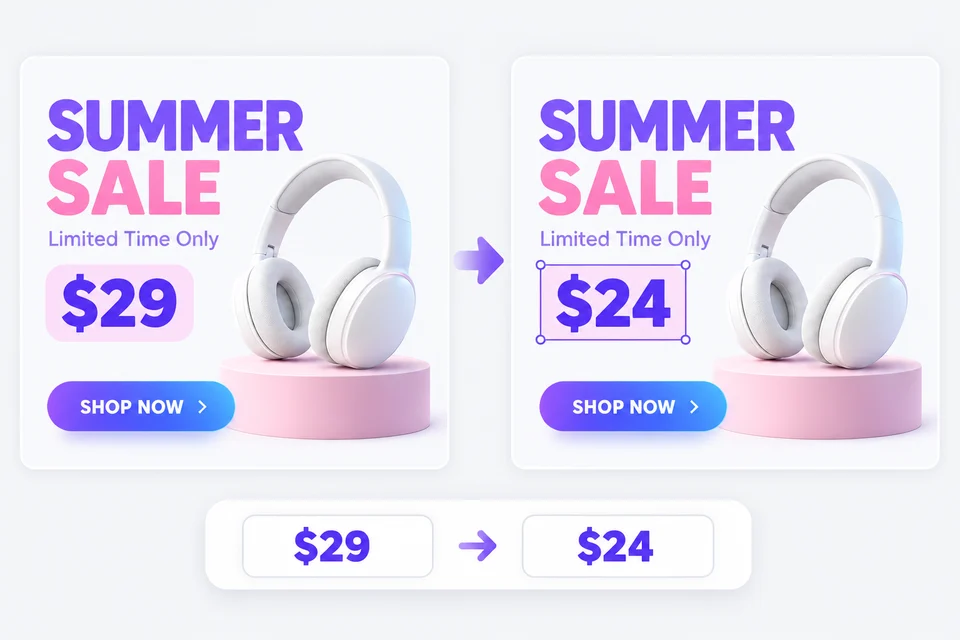
Example result
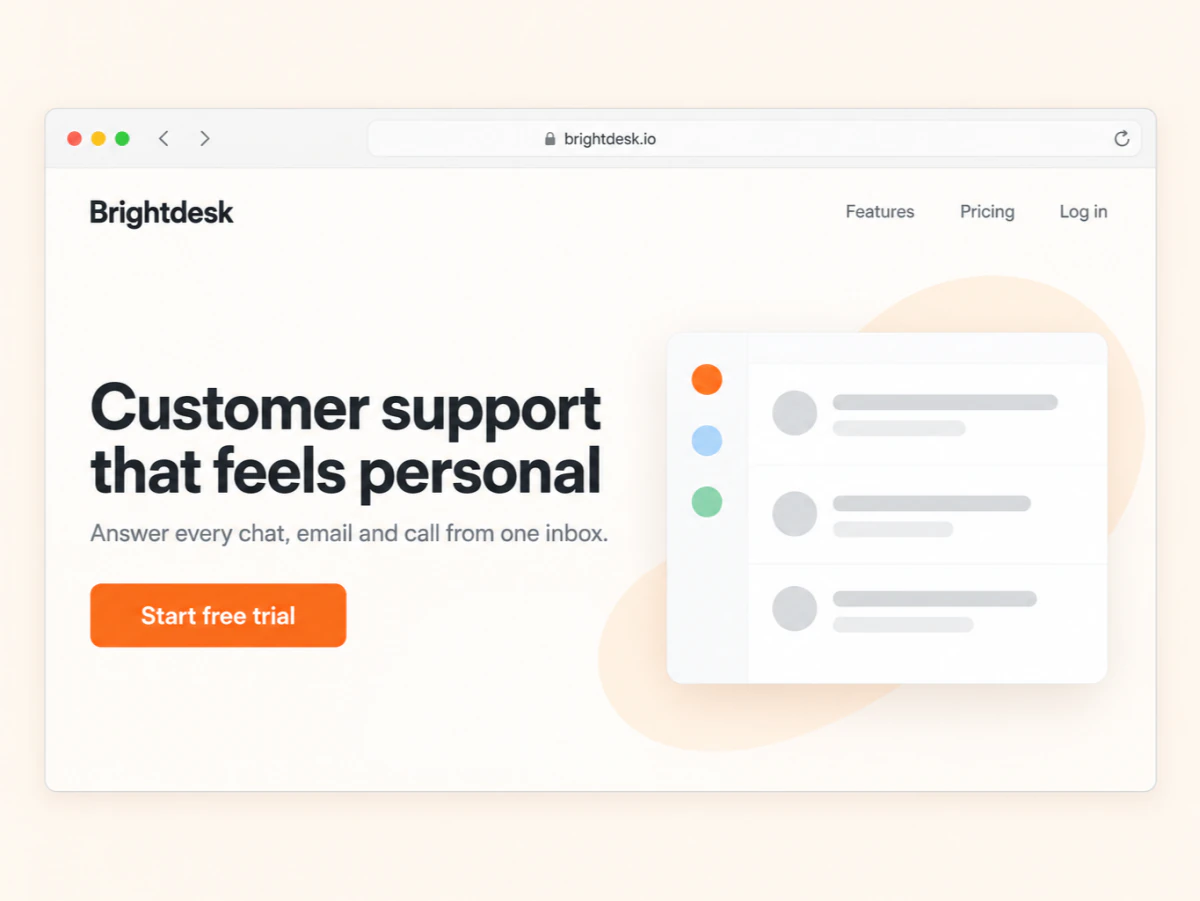
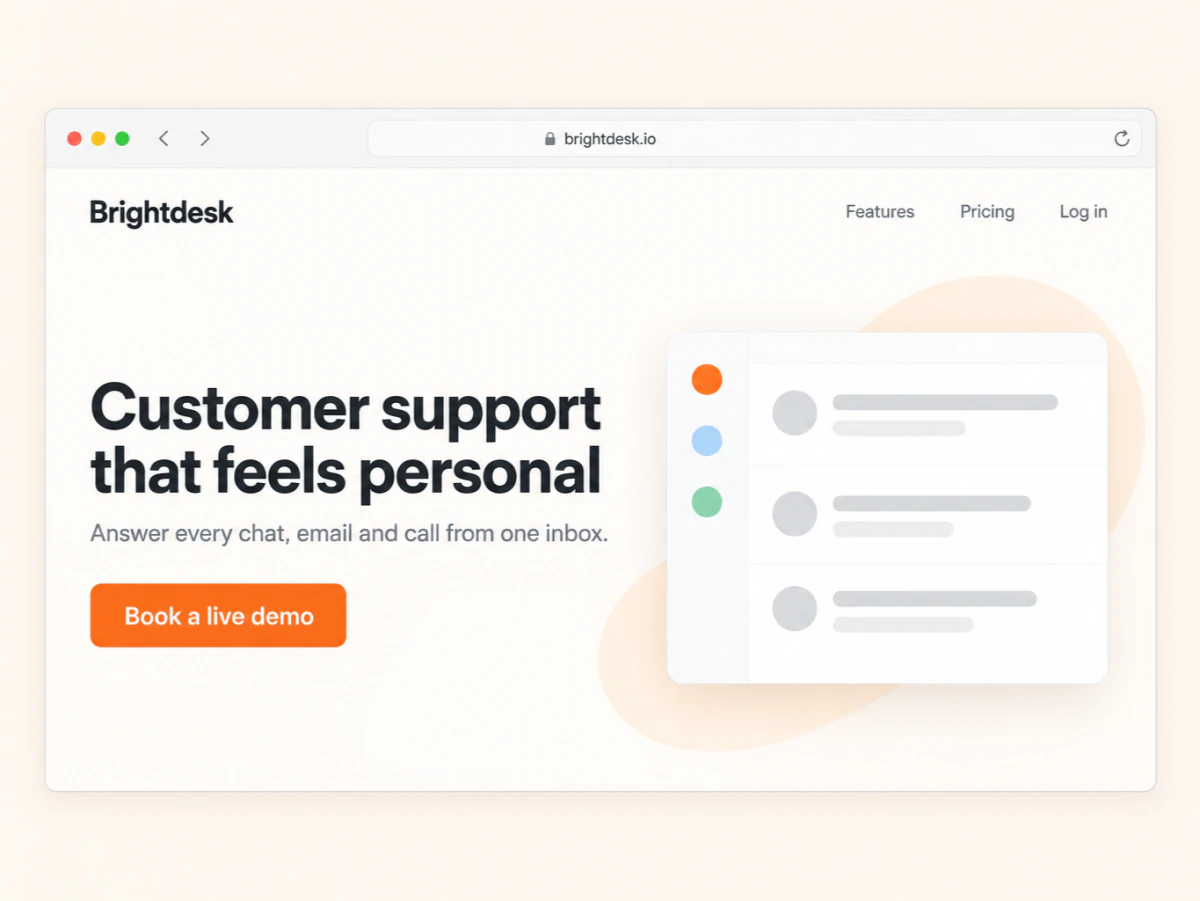
One button label changed; font, color and spacing stay the same.
Edit text in a screenshot online in three steps. No Photoshop, no font hunting and no retaking the screenshot.
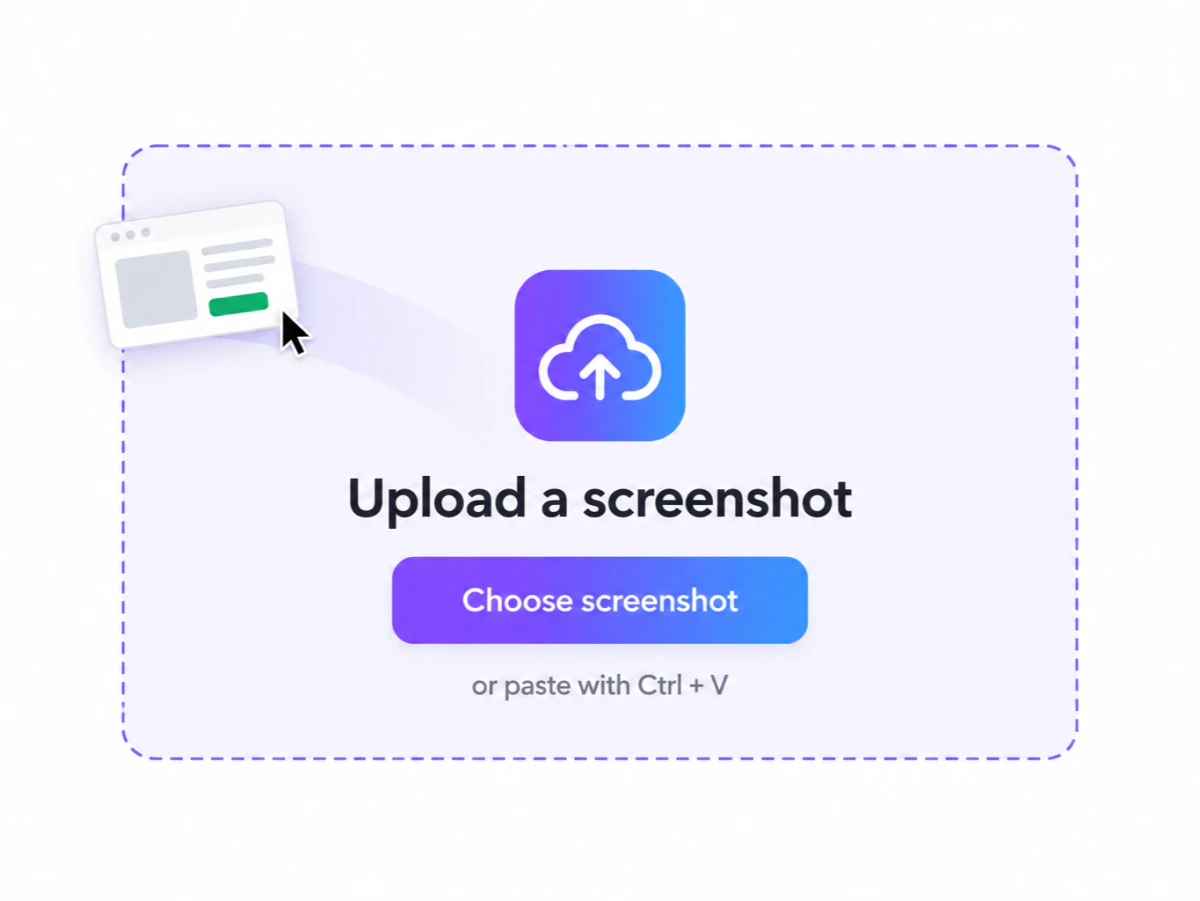
Press ⌘/Ctrl + V, drop a file or pick one from your phone. JPG, PNG and WebP up to 30MB work, and sample screenshots are ready if you just want to try.
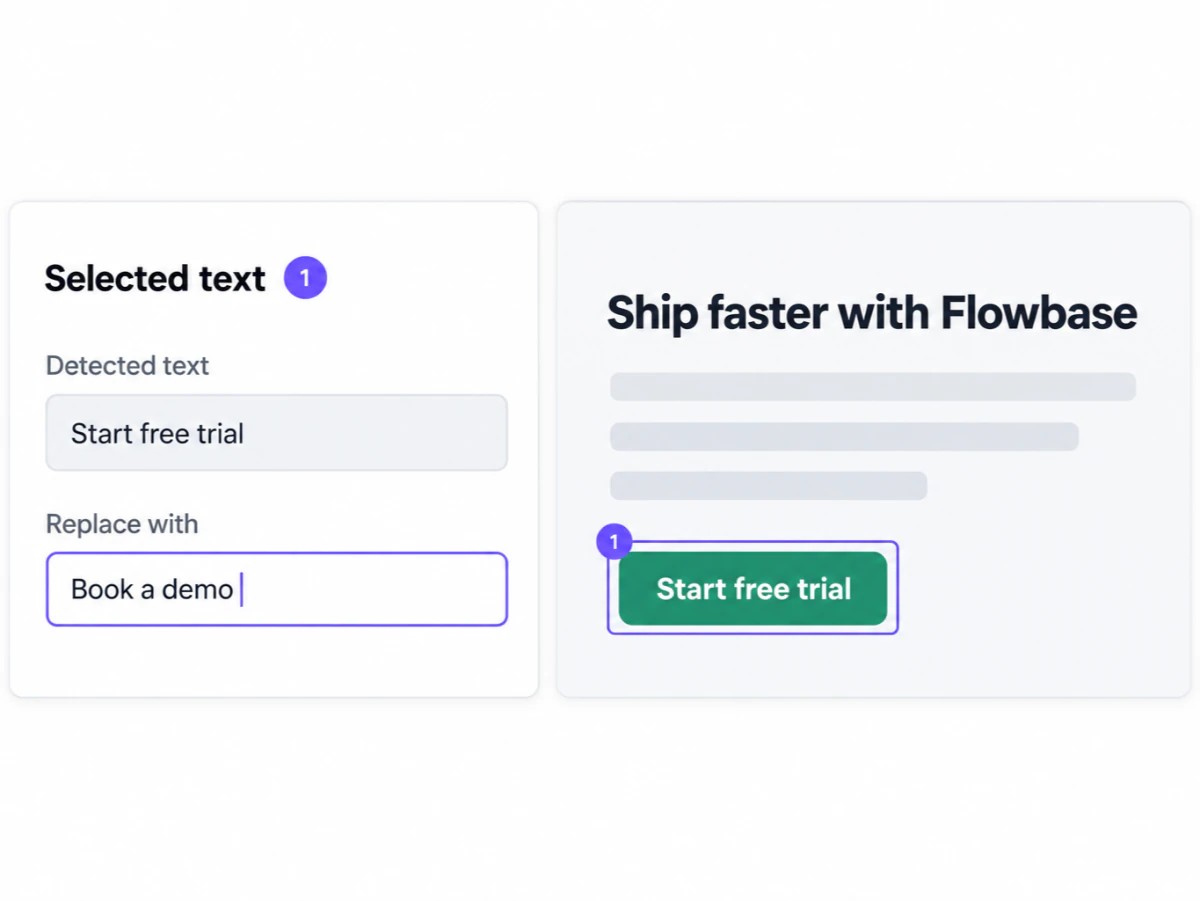
Every line is detected automatically. Click the words you want to change and type the replacement, or leave it blank to remove that text. Pick as many lines as you need.
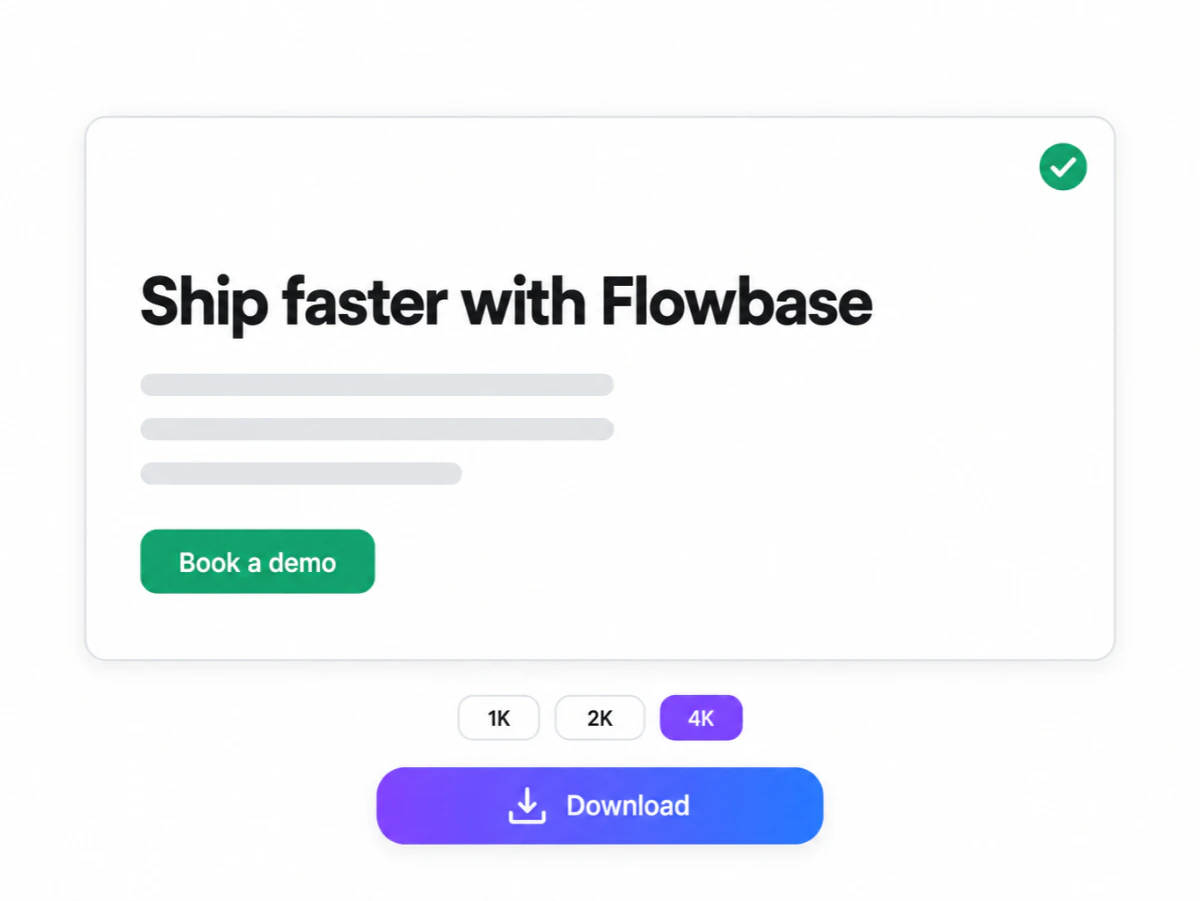
The AI rewrites each line in the original font, size and color. Check the result and download the edited screenshot in 1K, 2K or 4K.
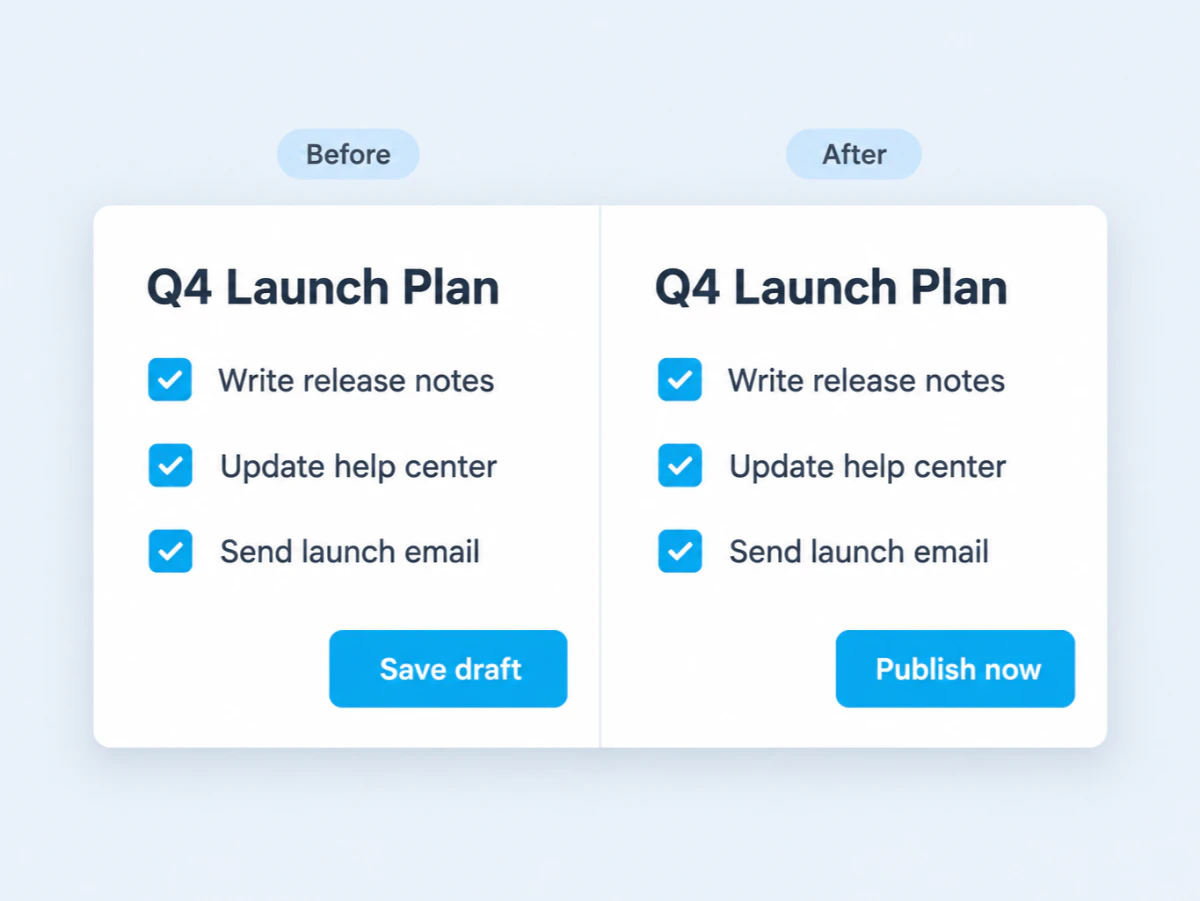
A screenshot text editor is a tool that changes the words already inside a screenshot, such as a button label, a chat message or a number on a dashboard, while keeping the original font, size, color and layout. Edit Pic Text is an AI screenshot text editor: it rewrites the existing text instead of adding a text box on top, so the screenshot still looks untouched.
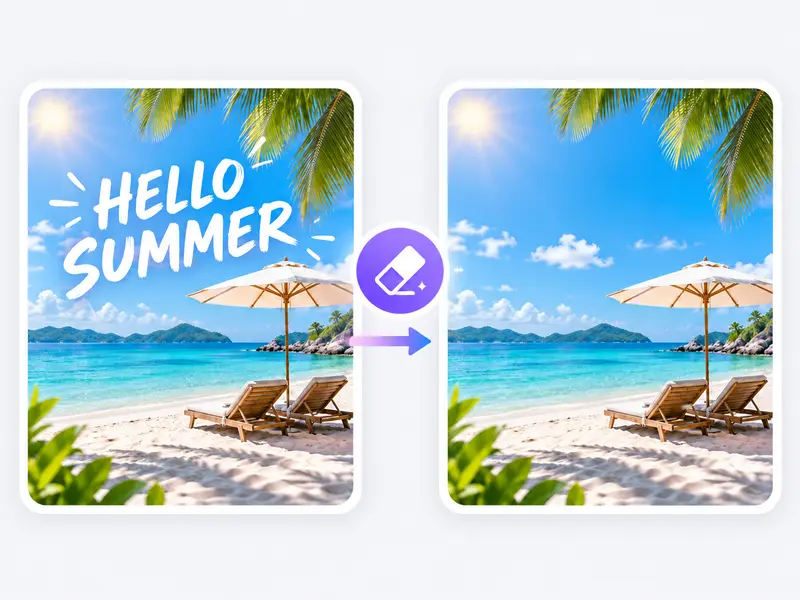
Text in the screenshot is found and outlined, from headings to small menu labels.
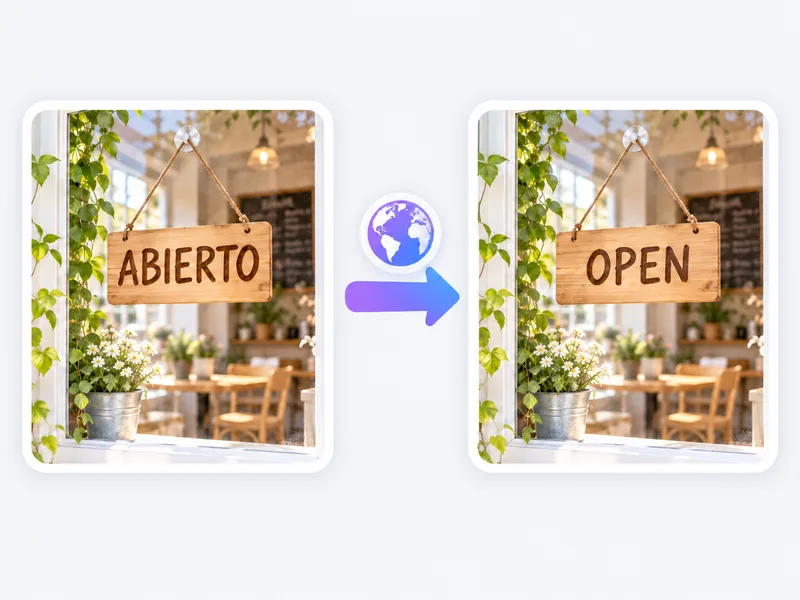
New words follow the original font, weight, size and color.
Icons, spacing and the status bar stay as they were.
Pick as many lines as you need and change them in a single run.

Whether you call it a screenshot or an SS, the job is the same: change the words without retaking the picture. These are the screenshots people edit most.
Write the exact message you need for a WhatsApp, iMessage or Slack mockup in an ad, slide or tutorial.
Turn a real interface screenshot into a proposal: swap button labels, menu names, headlines or plan names.
A feature was renamed or a date changed? Update the old wording instead of capturing every screen again.
Change a number on a music recap, a screen time summary or a game profile for a joke or a meme.

Many tools make you fix one spot at a time and charge for every try. Here you click each line you want to change, type the new words for each, and the AI rewrites them all in one edit. Add a short note such as "keep the price in bold" if a line needs extra care, and choose the AI model in the settings.
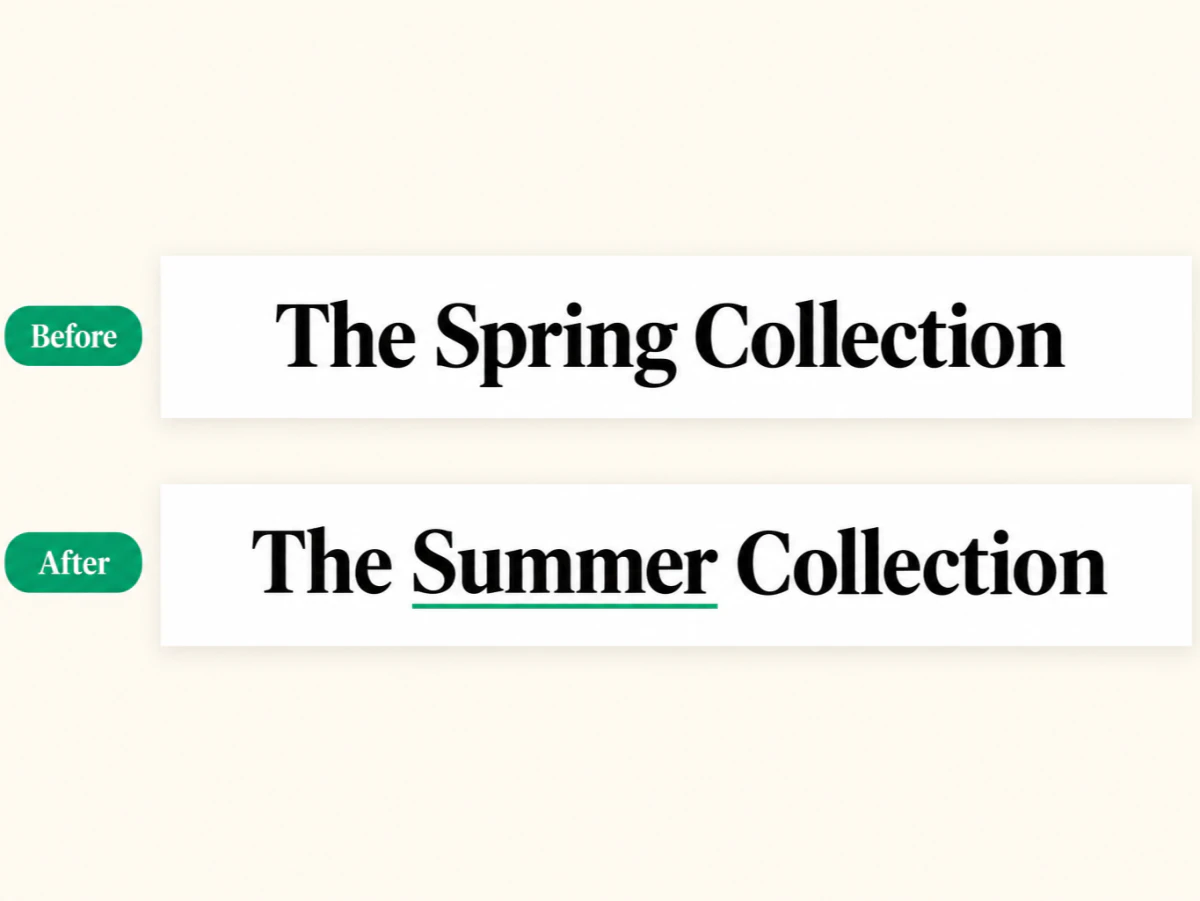
The hard part of fixing a screenshot by hand is matching the font and cleaning up the background behind the old words. Edit Pic Text reads the original letters, draws the new text in a matching typeface, weight, color and spacing, and rebuilds the pixels around it, so no smudges or ghost letters remain. Clear interface fonts give the best results.
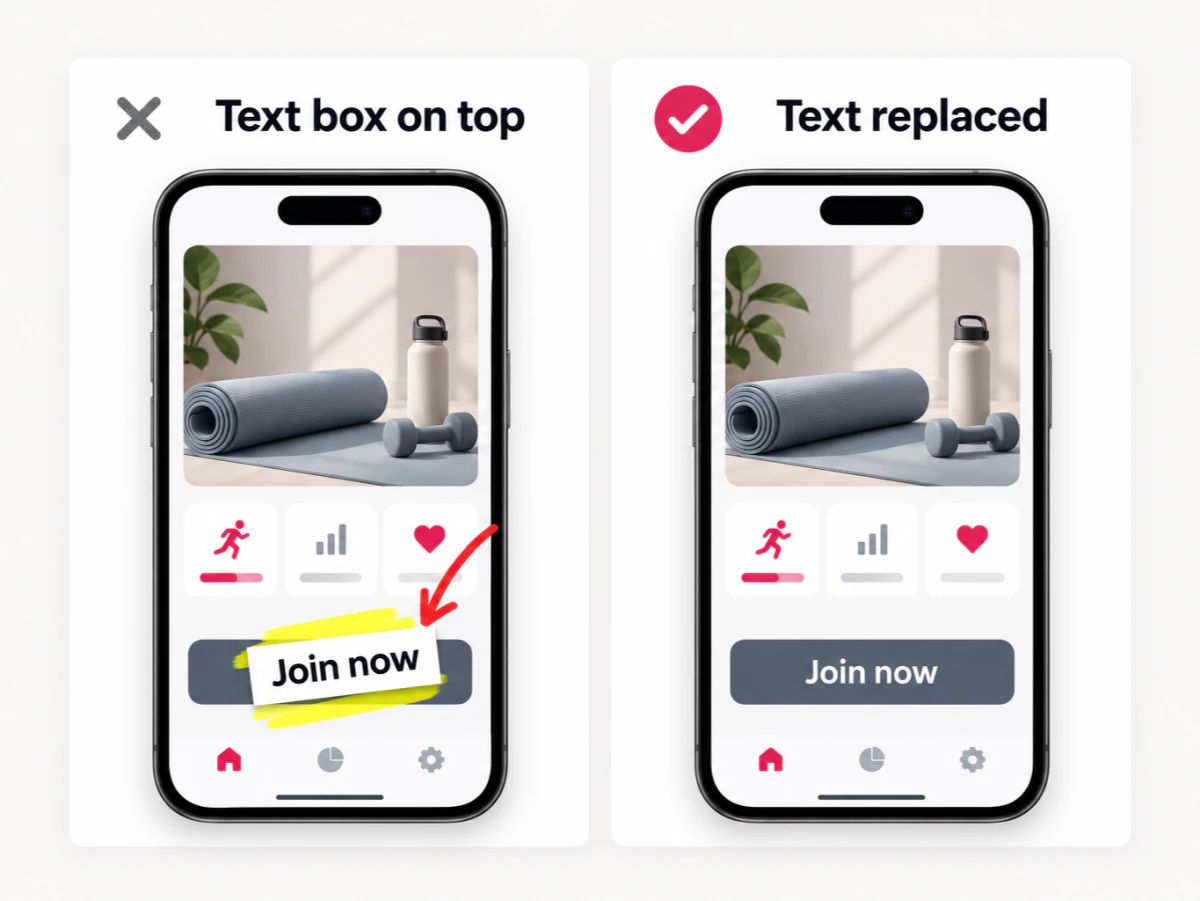
Most screenshot editors are built for markup: arrows, highlights, blur and new text boxes on top. That's handy for bug reports, but a text box over the old words looks pasted on. Edit Pic Text replaces the text that's already in the screenshot, so a button, label or message reads as if it was always there. For arrows and highlights, a markup tool is still the better fit.
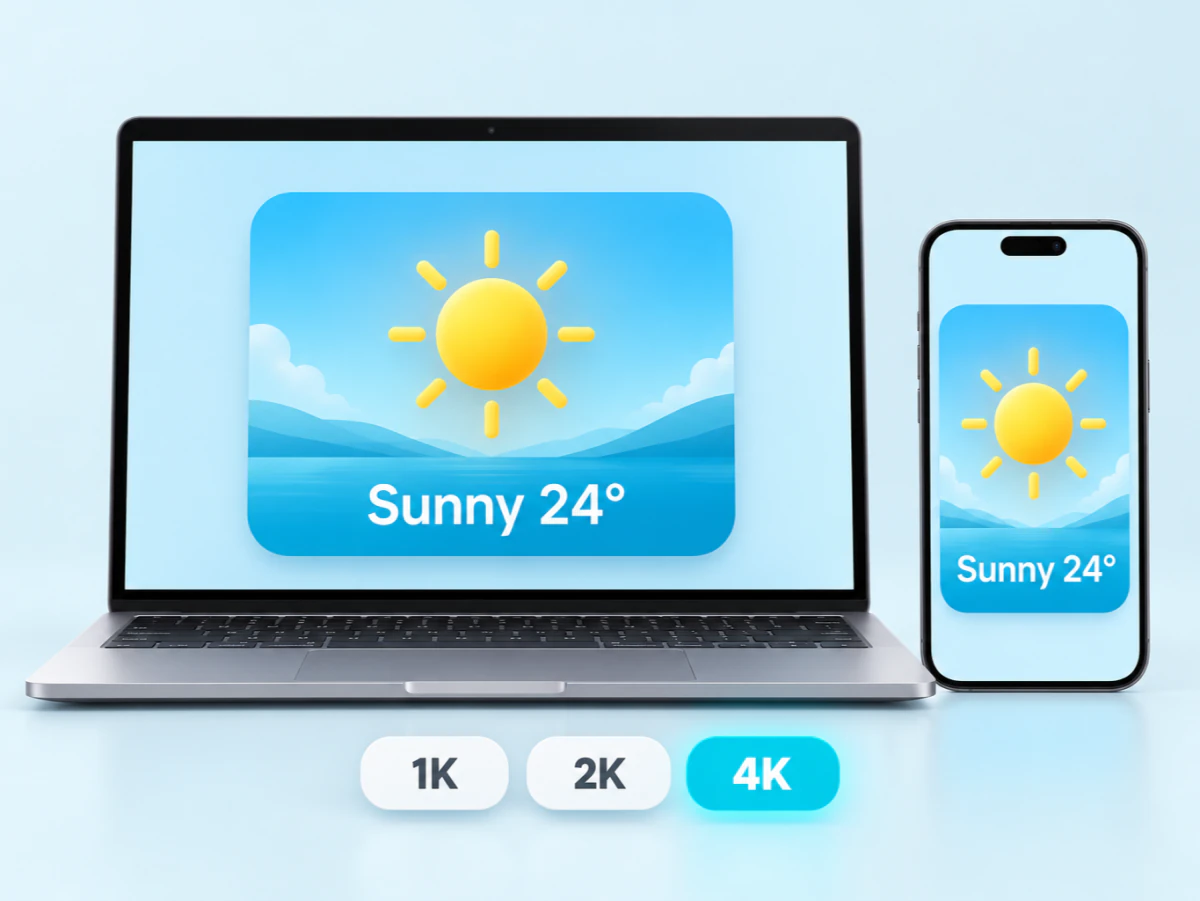
Everything runs in your browser on desktop, iPhone or Android, with nothing to install. Sign in to get free credits and edit your first screenshot right away. For crisp text, upload the original screenshot rather than a compressed copy from a chat app, then export at 1K, 2K or 4K depending on the aspect ratio.
A starter subscription for steady individual use.
A balanced plan for frequent creators.
Scale monthly credits as your workflow grows.
A starter subscription for steady individual use.
/ month
Includes
A balanced plan for frequent creators.
/ month
Includes
Scale monthly credits as your workflow grows.
/ month
Includes
We support the following secure payment methods:







Quick answers about editing text in screenshots with Edit Pic Text.
Have more questions? Contact our support team
Paste a screenshot, click the words and replace them in the original font.