
Basic
A starter subscription for steady individual use.
100credits
= 33 images
~ 25 videos
100 credits/month
$11.9/ month
Extract text from a photo, screenshot or scan in seconds. Headings, paragraphs, lists and tables come out in reading order, ready to copy, edit or download as a .txt file.
Drop images here or click to upload
Paste a screenshot with Ctrl+V · JPG, PNG or WebP · up to 30MB each · up to 5 images
Get text from image files online in three steps. There is nothing to retype and nothing to install: this image to text extractor runs in your browser.
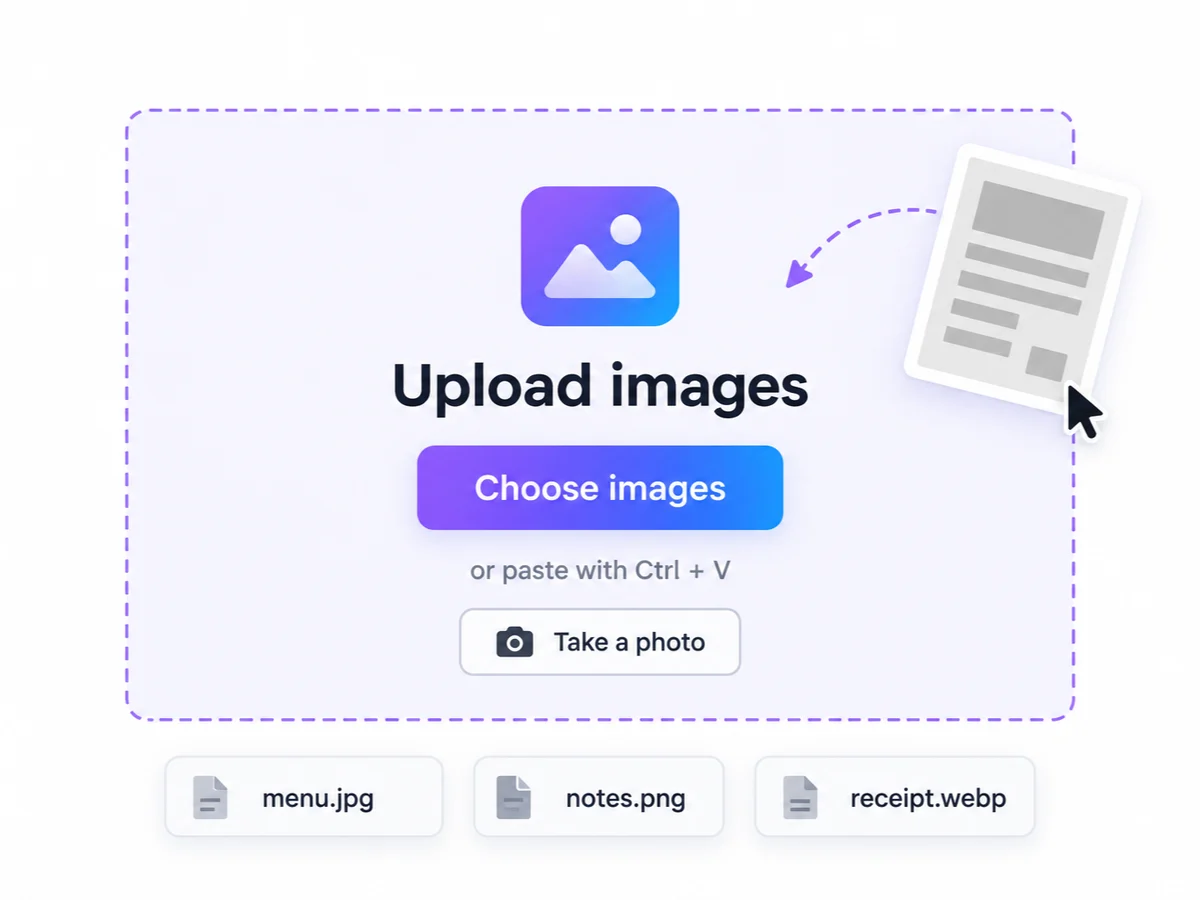
Drop up to 5 images, pick them from your device, press ⌘/Ctrl + V to paste a screenshot, or take a photo on your phone. JPG, PNG and WebP up to 30MB work.
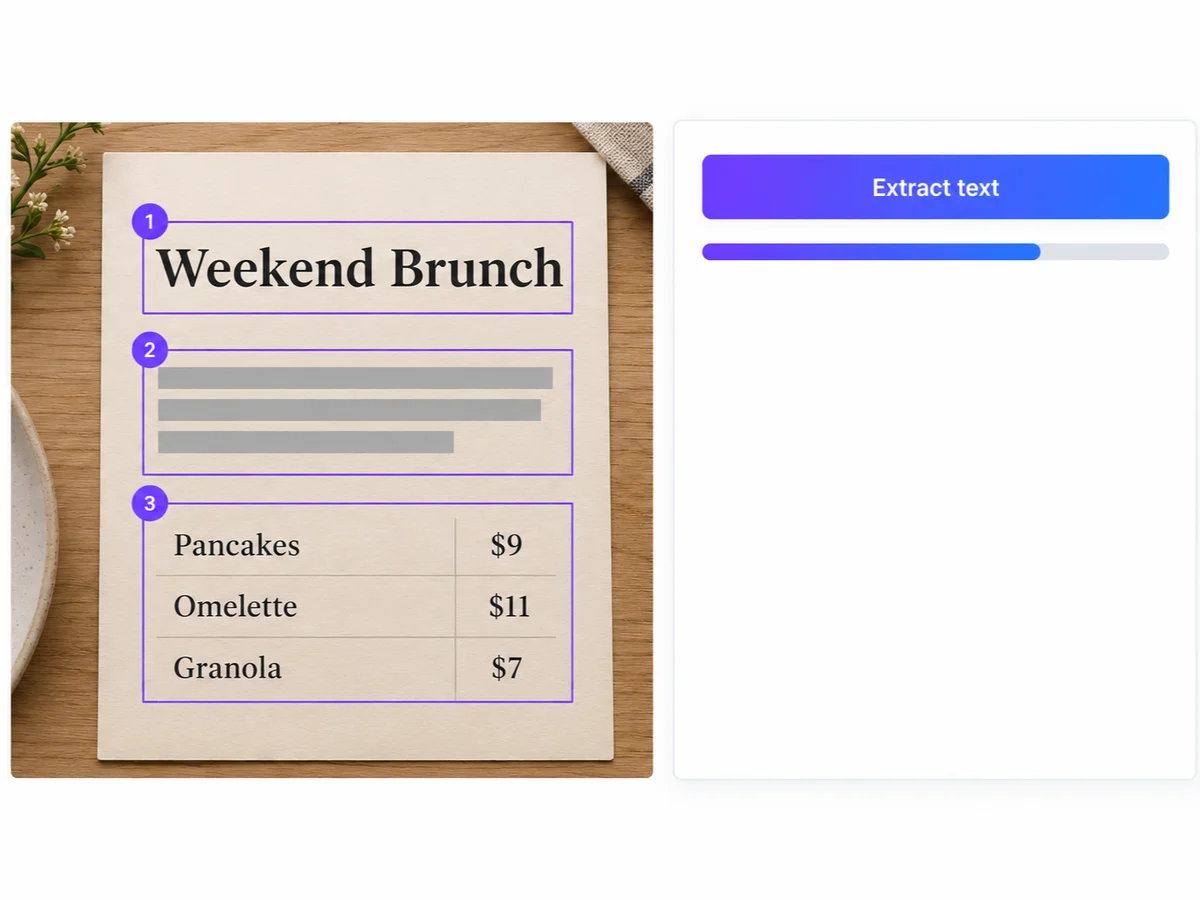
Sign in when you click Extract text. The AI reads every image in reading order and splits the text into headings, paragraphs, lists and tables. Each image costs 1 credit.
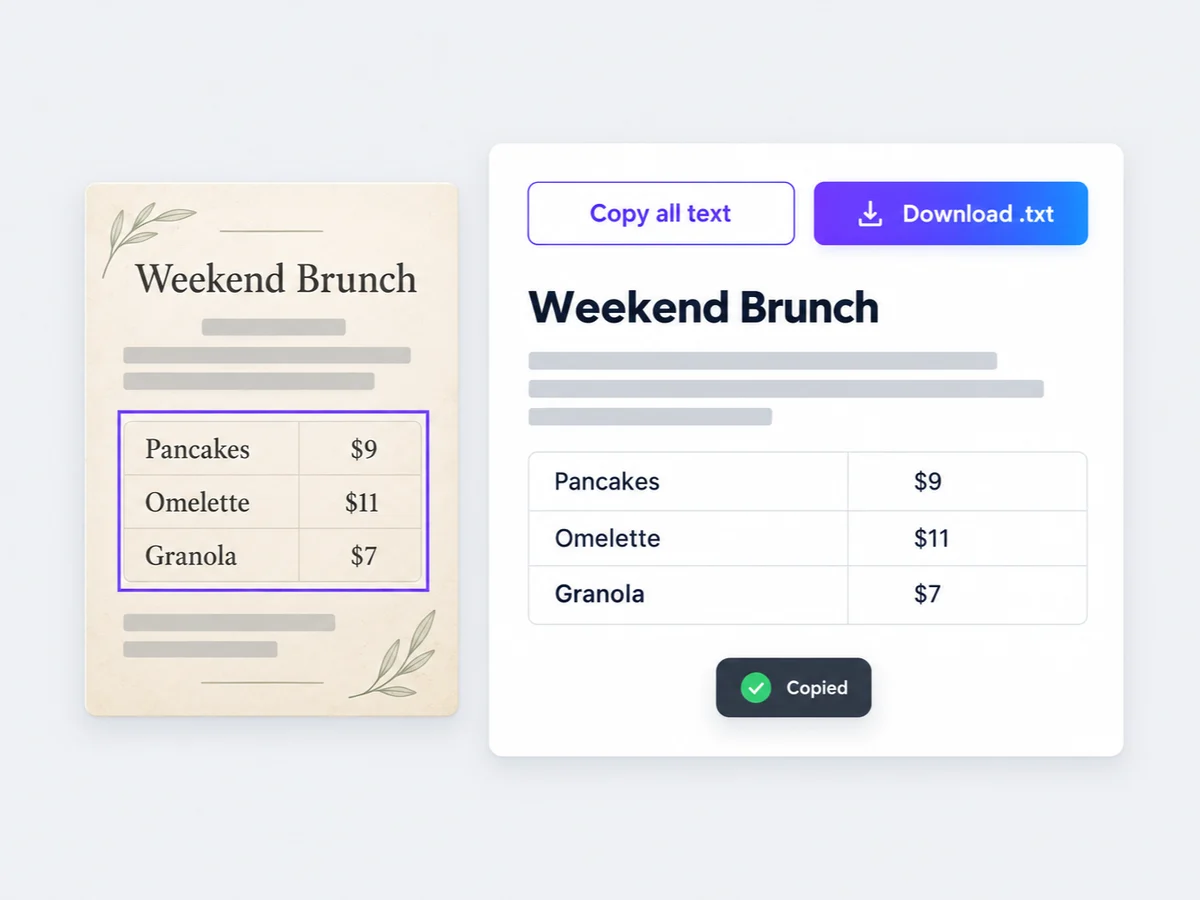
Check each block against the original image and fix anything you want. Then copy text from image results all at once, copy a single block or table, or download everything as a .txt file.
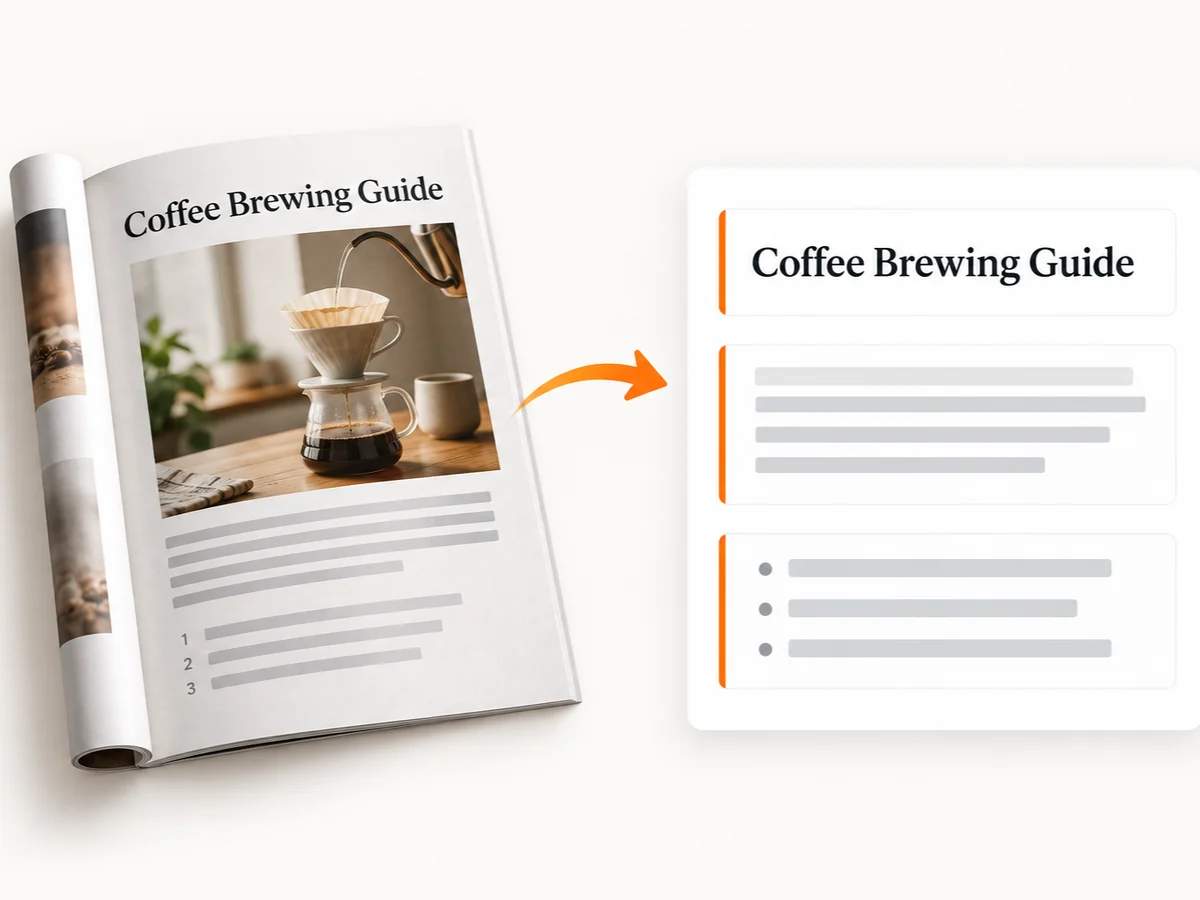
OCR (optical character recognition) is the technology that recognizes printed or handwritten characters in an image and turns them into text you can copy, search and edit. A text extractor from image, also called an image text extractor, is an online OCR tool: you upload a picture and get its words back as plain text. Edit Pic Text uses an AI vision model instead of classic OCR, so it can read text from image files the way a person does and keeps headings, paragraphs, lists and tables in order.
Headings, paragraphs, lists and tables come out as separate blocks in reading order.
Hover a block to highlight where it sits in the image, or click a box to jump to its text.
Keep the original line breaks or merge lines into clean paragraphs with one switch.
Add several images in one go; each gets its own result to copy separately or together.
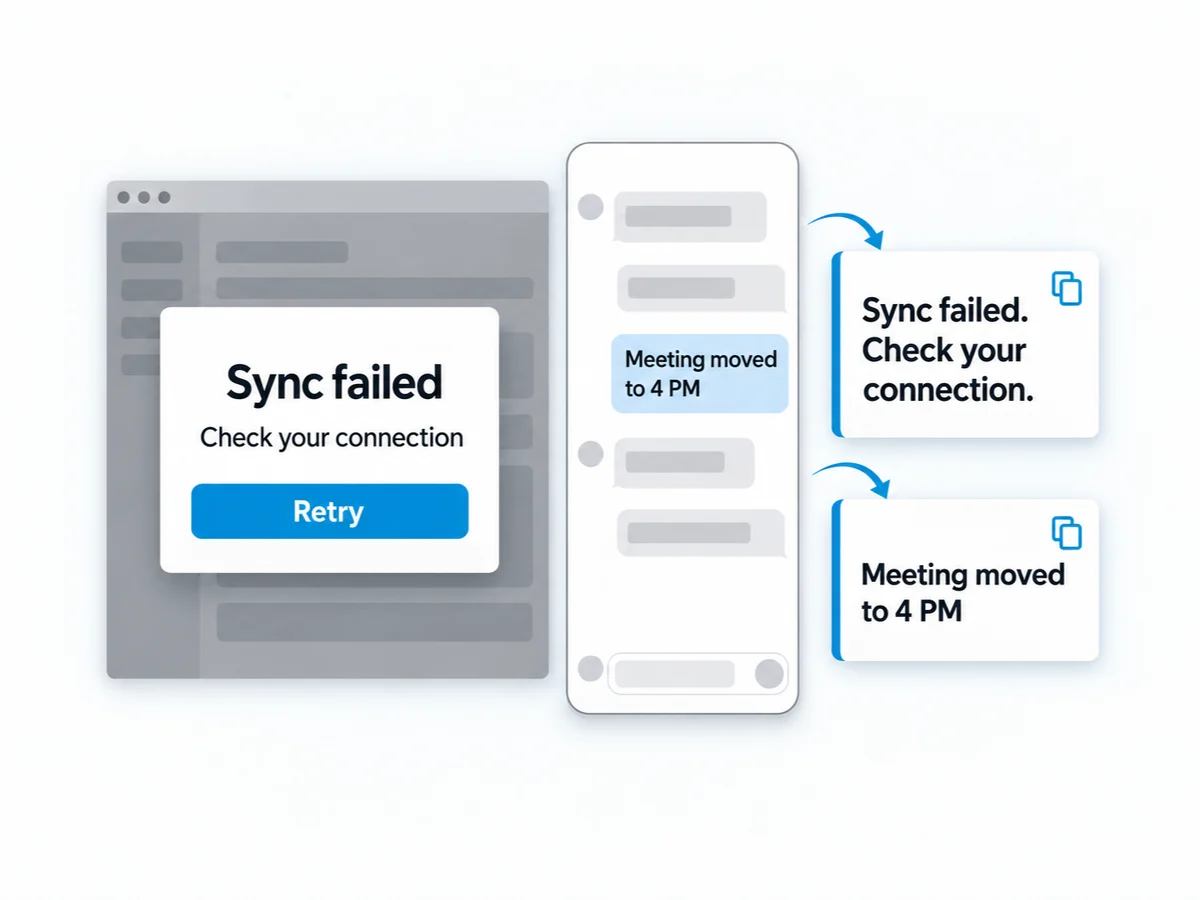
Some text can only be seen, not selected: an error dialog, a chat thread, a slide in a video call or a page inside an app. Take a screenshot, press ⌘/Ctrl + V here and copy text from the screenshot in seconds. Messages, menus and labels usually come back as separate blocks, so you can grab just the line you need.
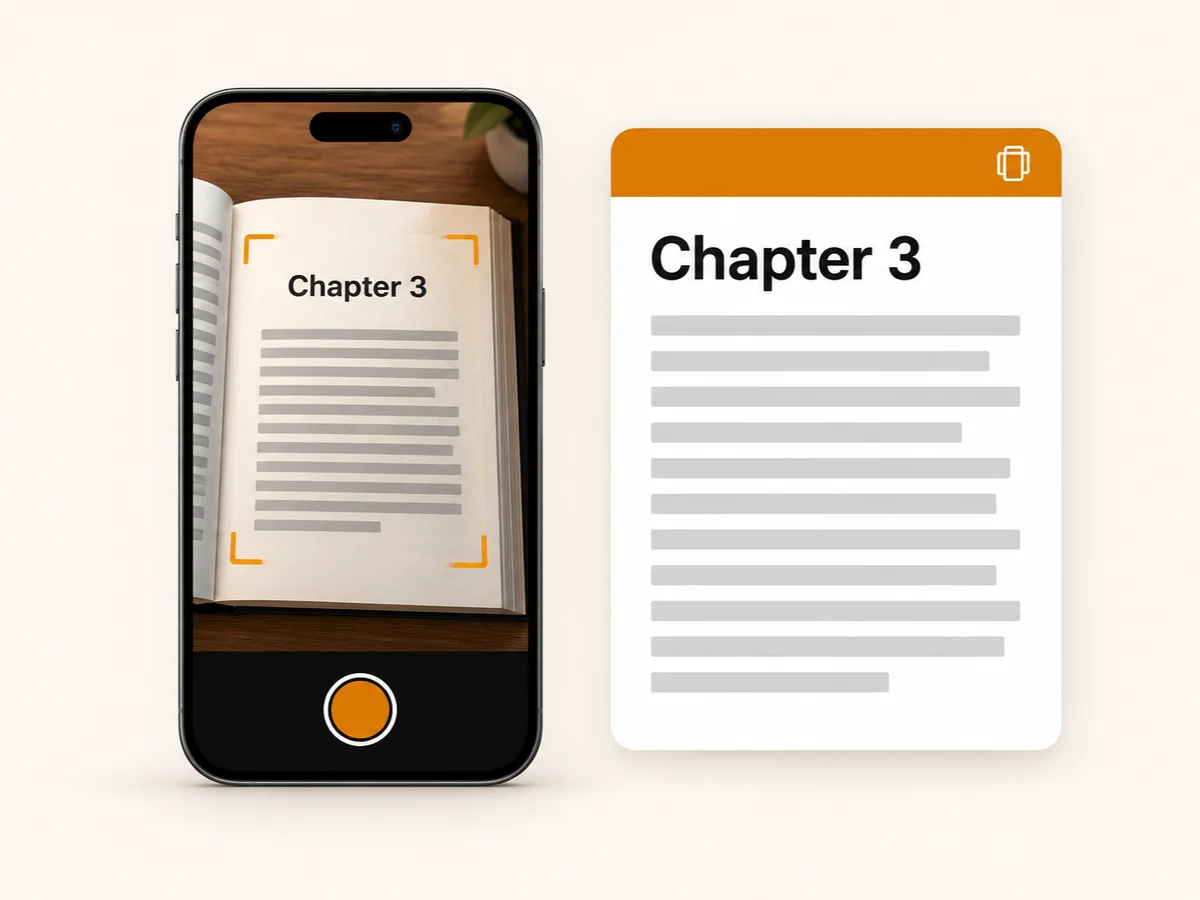
Point your phone at a book page, a whiteboard, a product label or a printed handout and take a photo right from this page. It works as a text scanner and photo to text converter in the browser: copy text from a photo into notes, email or a document, and scan text from several pages in one go.
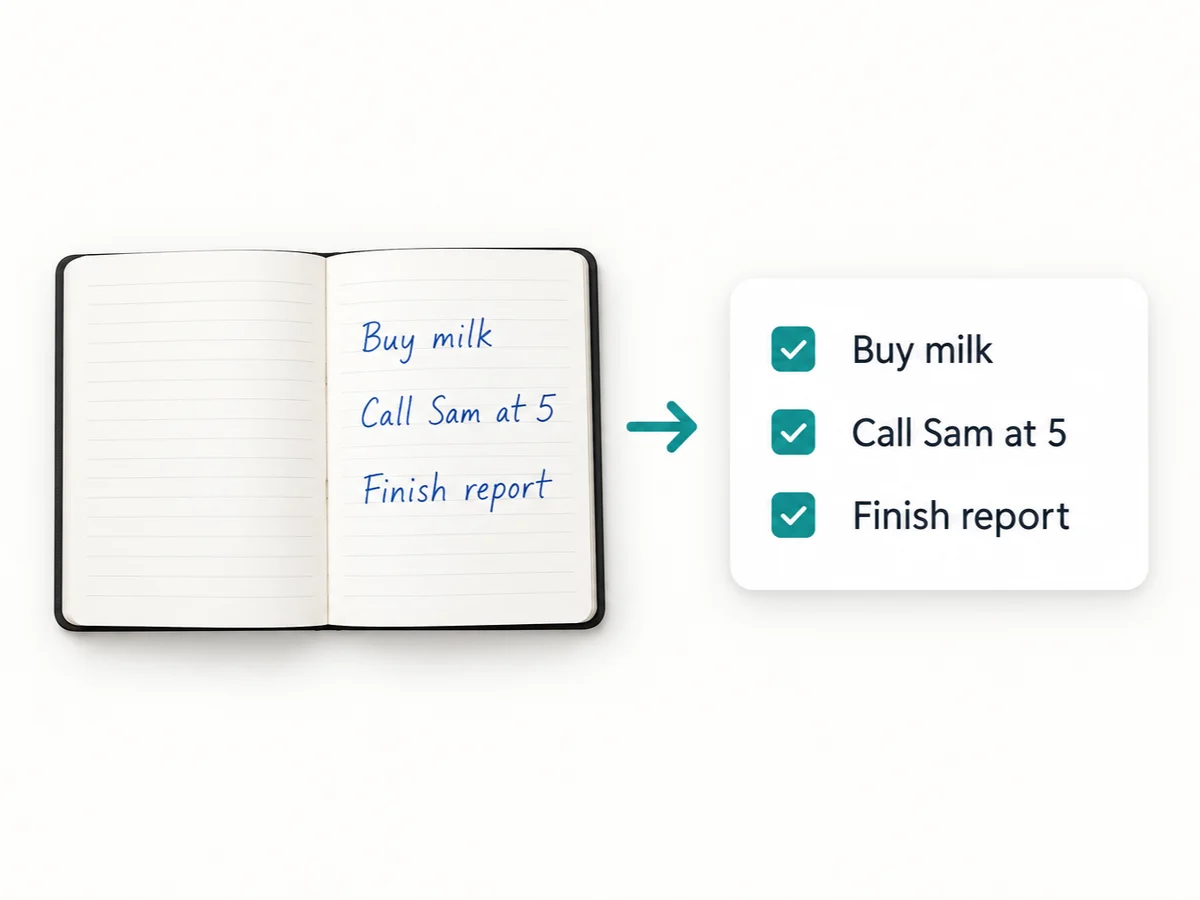
Turn handwritten class notes, meeting notes, letters and filled-in forms into typed text you can search and edit. As a handwriting to text converter it works best on neat writing in good light; cramped or decorative handwriting may come out with a few wrong words, so check the result against the original image shown beside it.
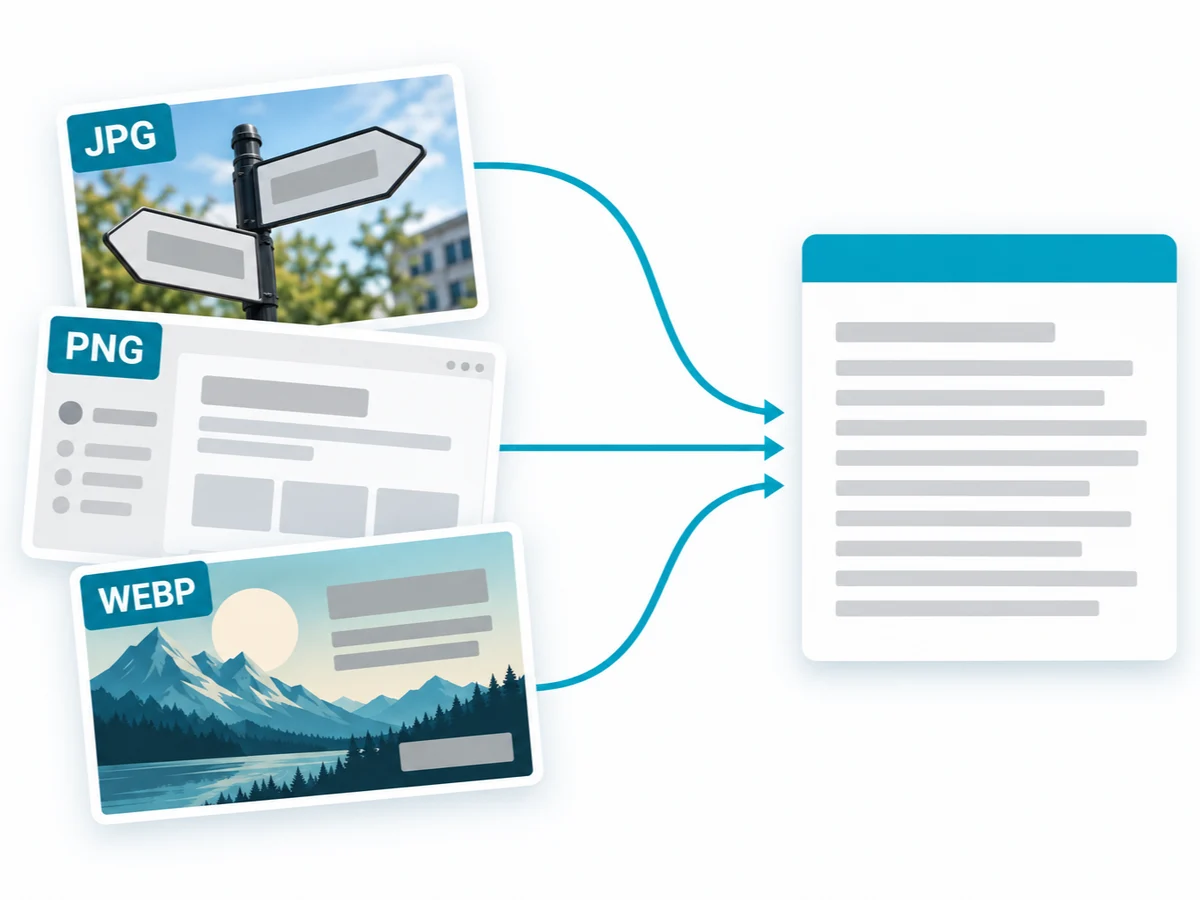
Whether your file is a JPG photo, a PNG screenshot or a WebP picture saved from the web, picture to text works the same way: upload it and convert the picture to text in one click. Files up to 30MB are accepted. Sharp, uncompressed images give the cleanest text, so use the original file rather than a copy sent through a chat app.
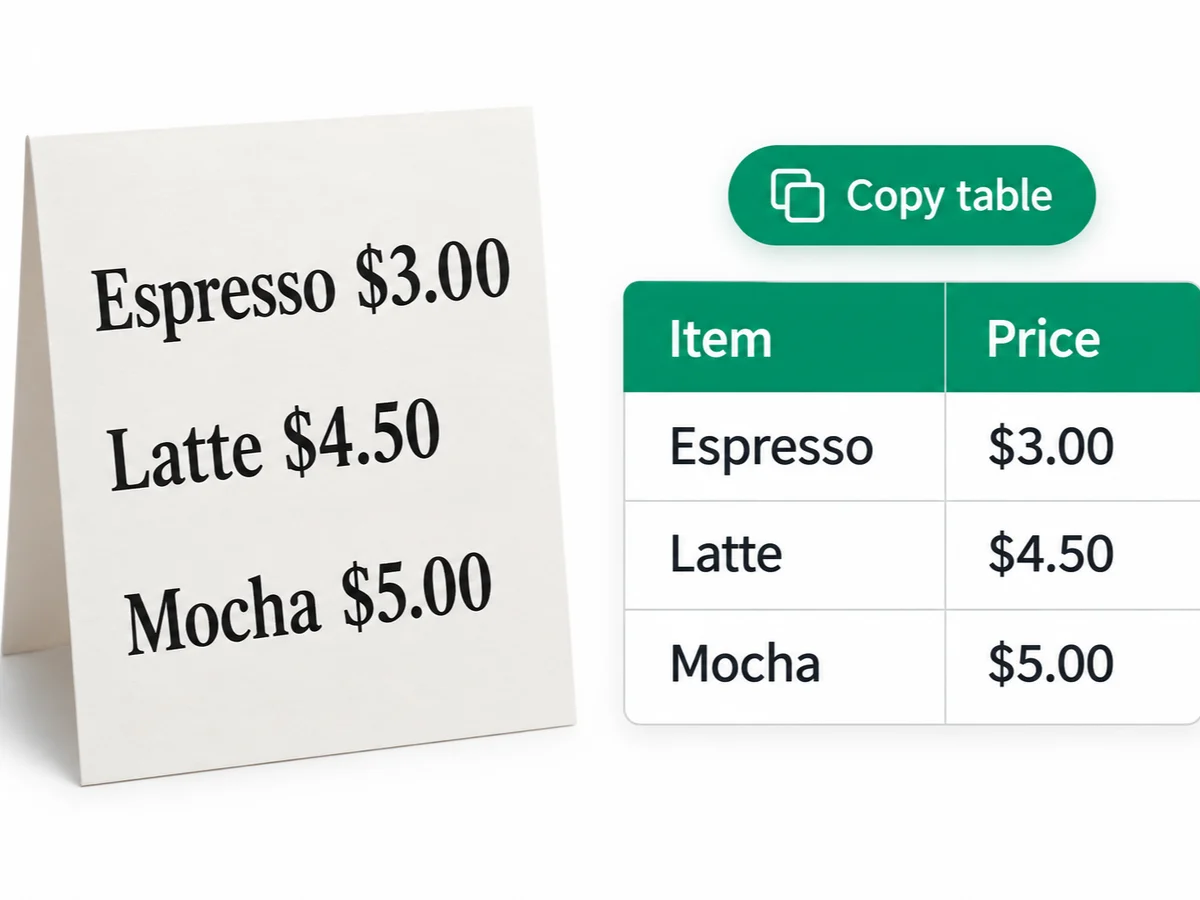
A typical image or picture to text converter returns one long wall of text. Here, headings, paragraphs, lists and tables stay apart and in reading order. Tables keep their rows and columns, and Copy table puts them on your clipboard as tab-separated text that pastes straight into Excel or Google Sheets. Choose whether to keep the original line breaks or merge them into paragraphs.
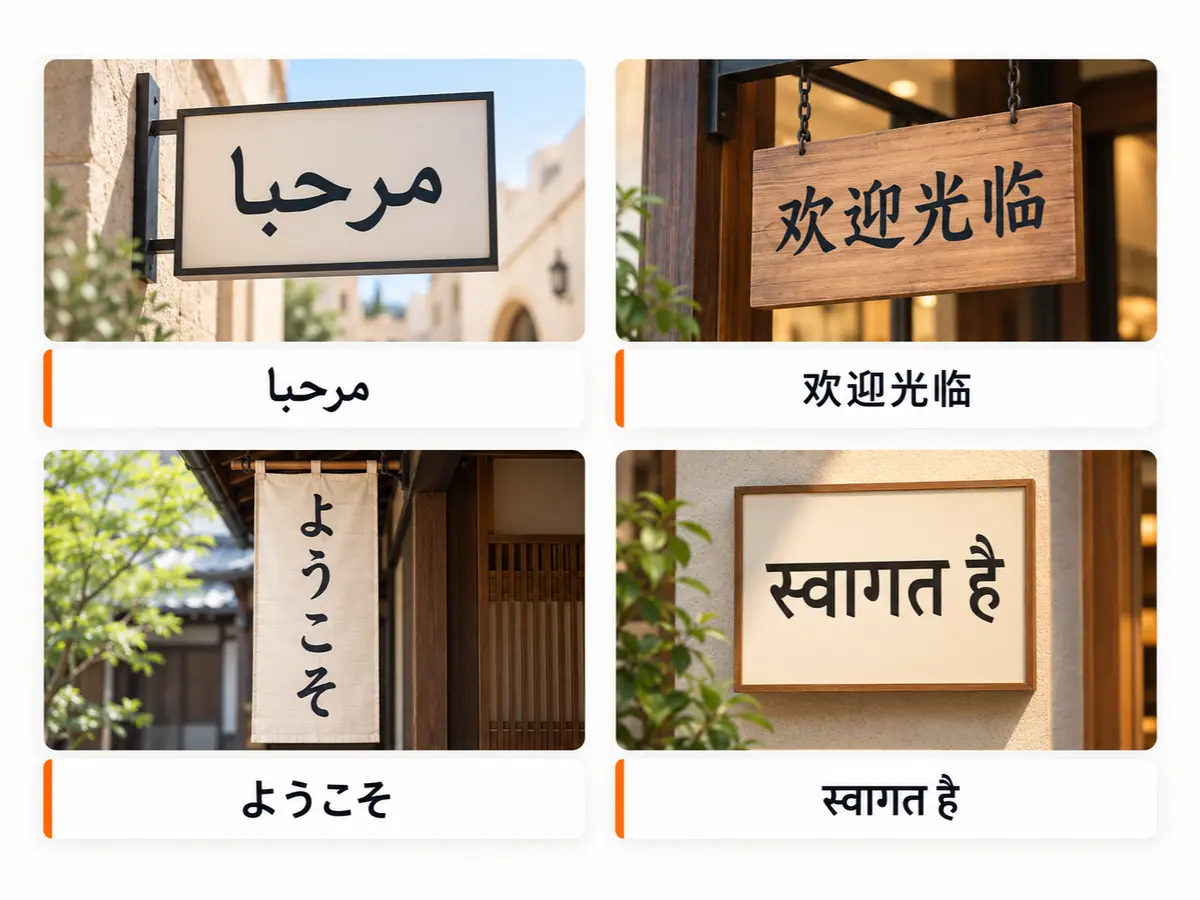
This image OCR reads English, Spanish, French, German, Portuguese, Chinese, Japanese, Korean, Arabic, Hindi and many other languages, including images that mix several of them. Text stays in its original language, right-to-left scripts keep their direction, and vertical Chinese or Japanese is returned in the correct reading order.
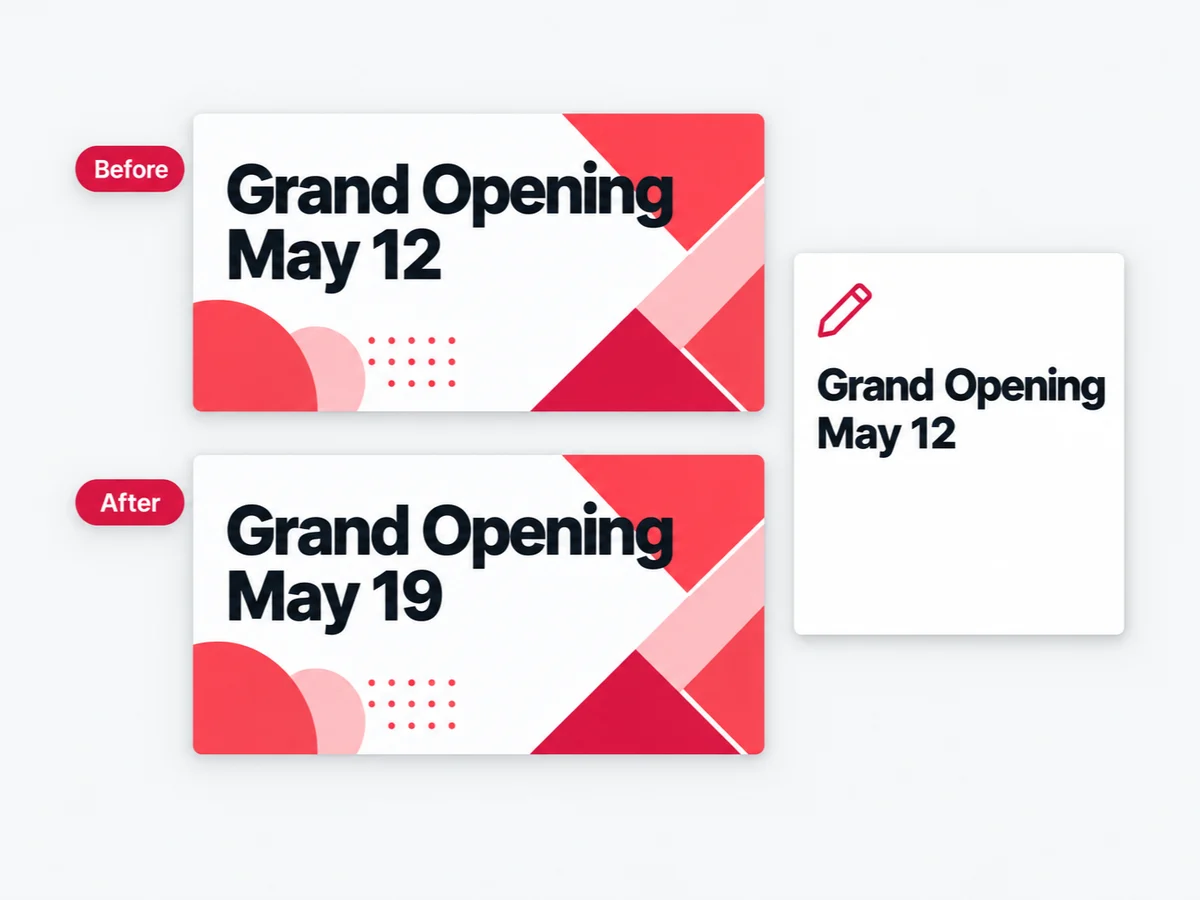
When you extract text from image files, you often spot what needs fixing: a wrong price on a flyer, a typo on a slide, a date that changed. After extraction, click Edit text in this image to open the same picture in our image text editor, change the words in place and keep the original font, without redrawing anything.
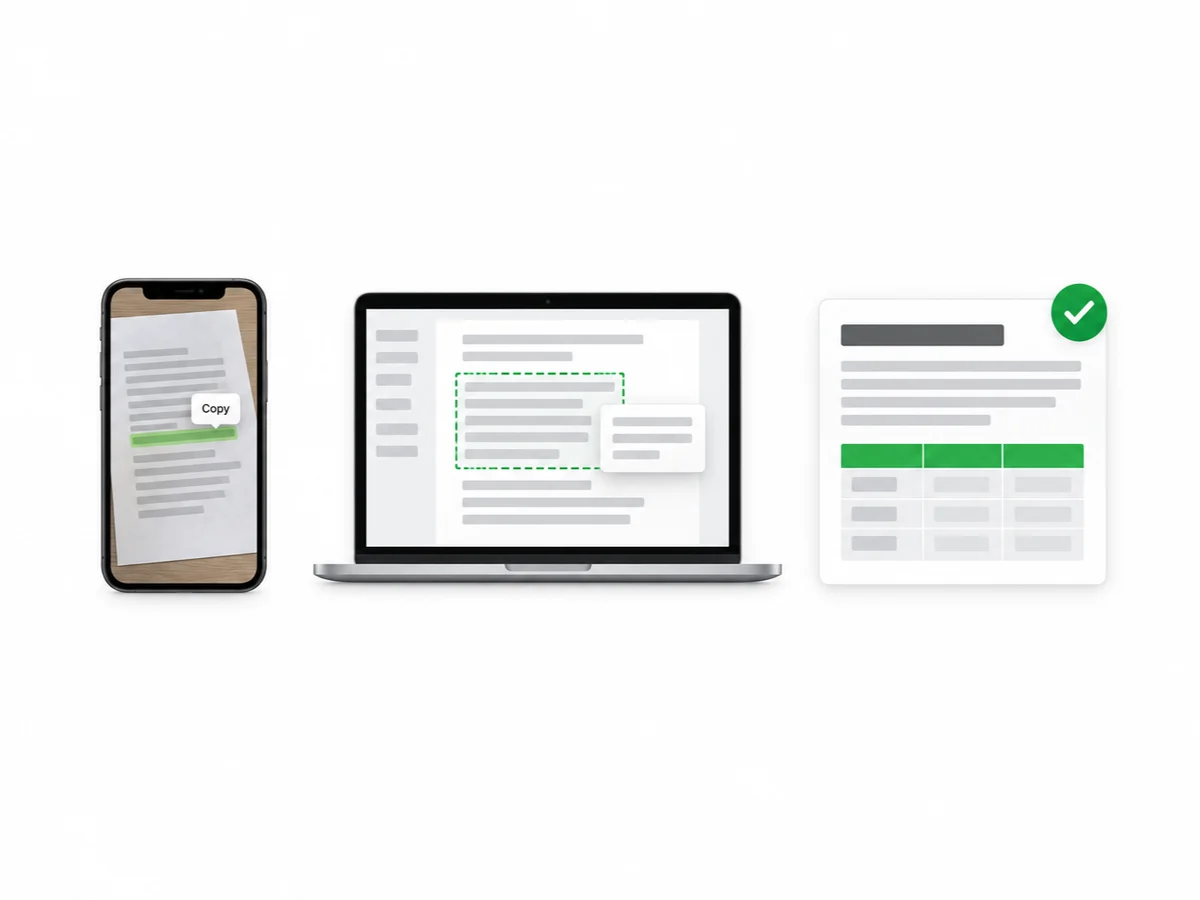
Your phone and computer already have quick ways to grab a line of text. Edit Pic Text is for when you need more than one line: several images at once, the structure kept, tables you can paste and a .txt file to save.
Great for copying a few words quickly. Here you get whole pages split into headings, paragraphs and tables, plus a .txt download.
Handy to select text from image files in Photos and Camera. Here you can process up to 5 images at once and download all the text.
PowerToys and the Snipping Tool copy text from part of your screen as plain text. Here tables keep their rows and columns.
A starter subscription for steady individual use.
A balanced plan for frequent creators.
Scale monthly credits as your workflow grows.
A starter subscription for steady individual use.
/ month
Includes
A balanced plan for frequent creators.
/ month
Includes
Scale monthly credits as your workflow grows.
/ month
Includes
We support the following secure payment methods:










Quick answers about extracting text from images with Edit Pic Text.
Have more questions? Contact our support team

Upload a photo, screenshot or scan and get editable text with headings, lists and tables in order.